 SmartCollect SC² Help
Add a data source
Before you create your first dashboard, you need to add your data source. Following are the list of instructions to create one.
Note: Only users with the organization Admin role can add data sources.
-
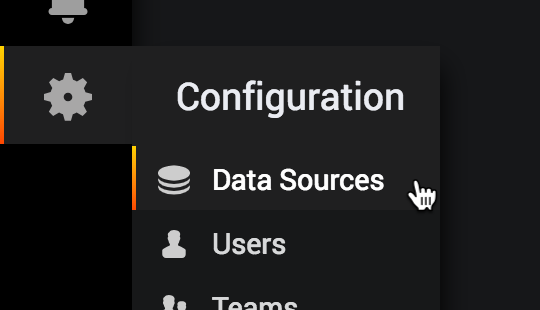
Move your cursor to the cog on the side menu which will show you the configuration menu. If the side menu is not visible click the SmartCollect SC² icon in the upper left corner. Click on Configuration > Data Sources in the side menu and you’ll be taken to the data sources page where you can add and edit data sources. You can also click the cog.

-
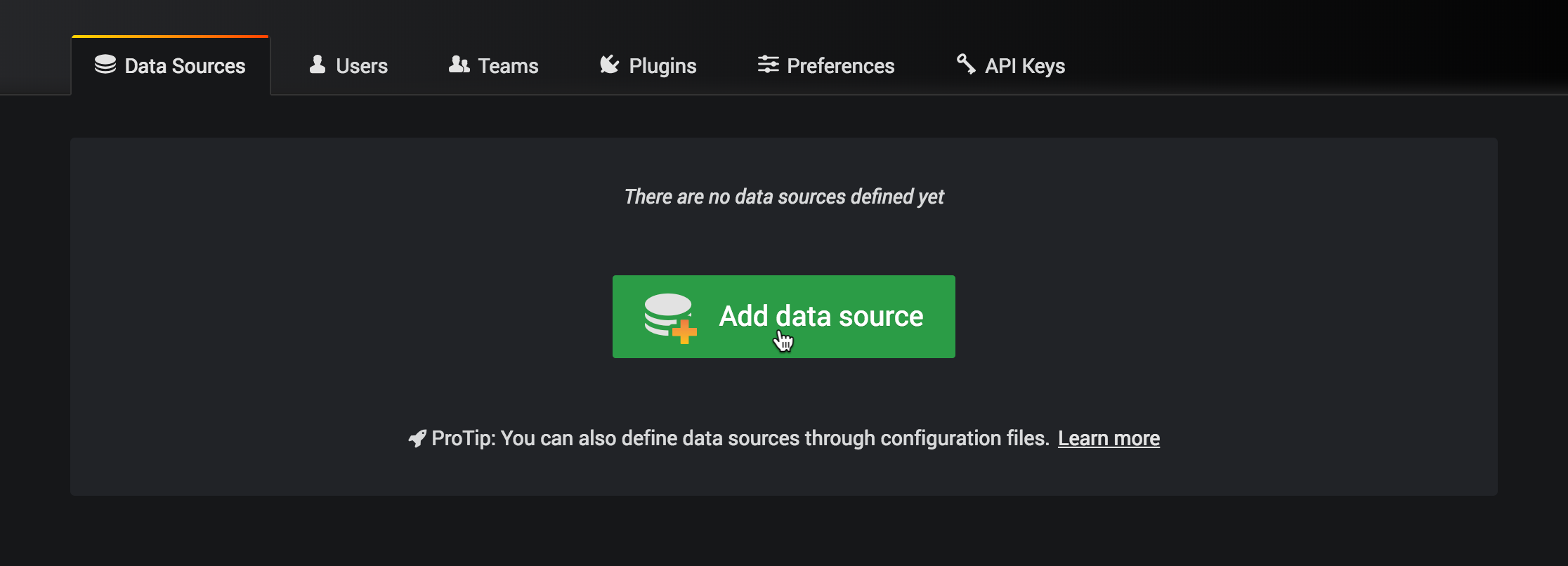
Click Add data source and you will come to the settings page of your new data source.
-
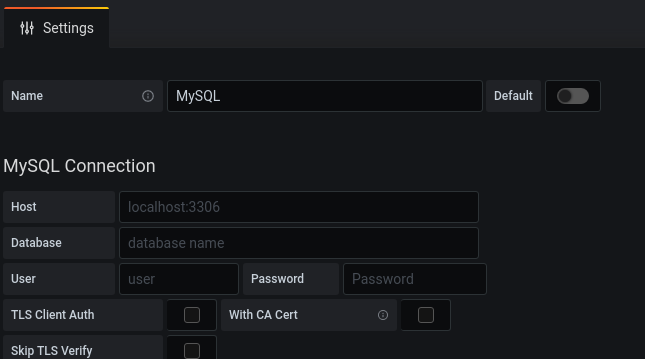
In the Name box, enter a name for this data source.
-
In the Type, select the type of data source. See Supported data sources for more information and how to configure your data source settings.
-
Click Save & Test.